1
2
Install the Extension
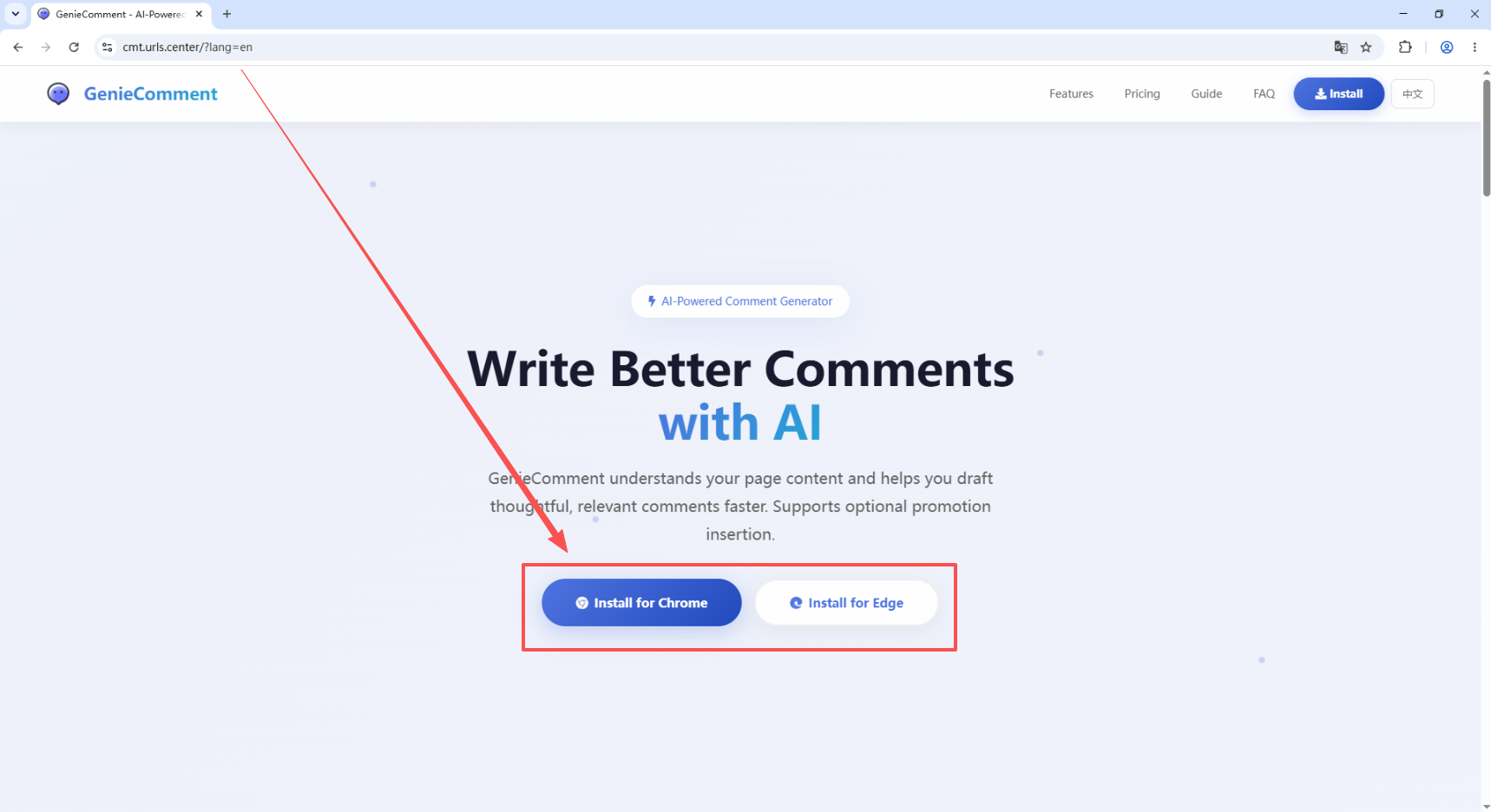
Click the install button for your browser and get GenieComment from the official add-on marketplace.
- Chrome user: go to Chrome Web Store to install
- Edge user: go to Edge Add-ons to install
Once installed, the extension icon will appear in the top-right corner of your browser. Click it to open GenieComment.
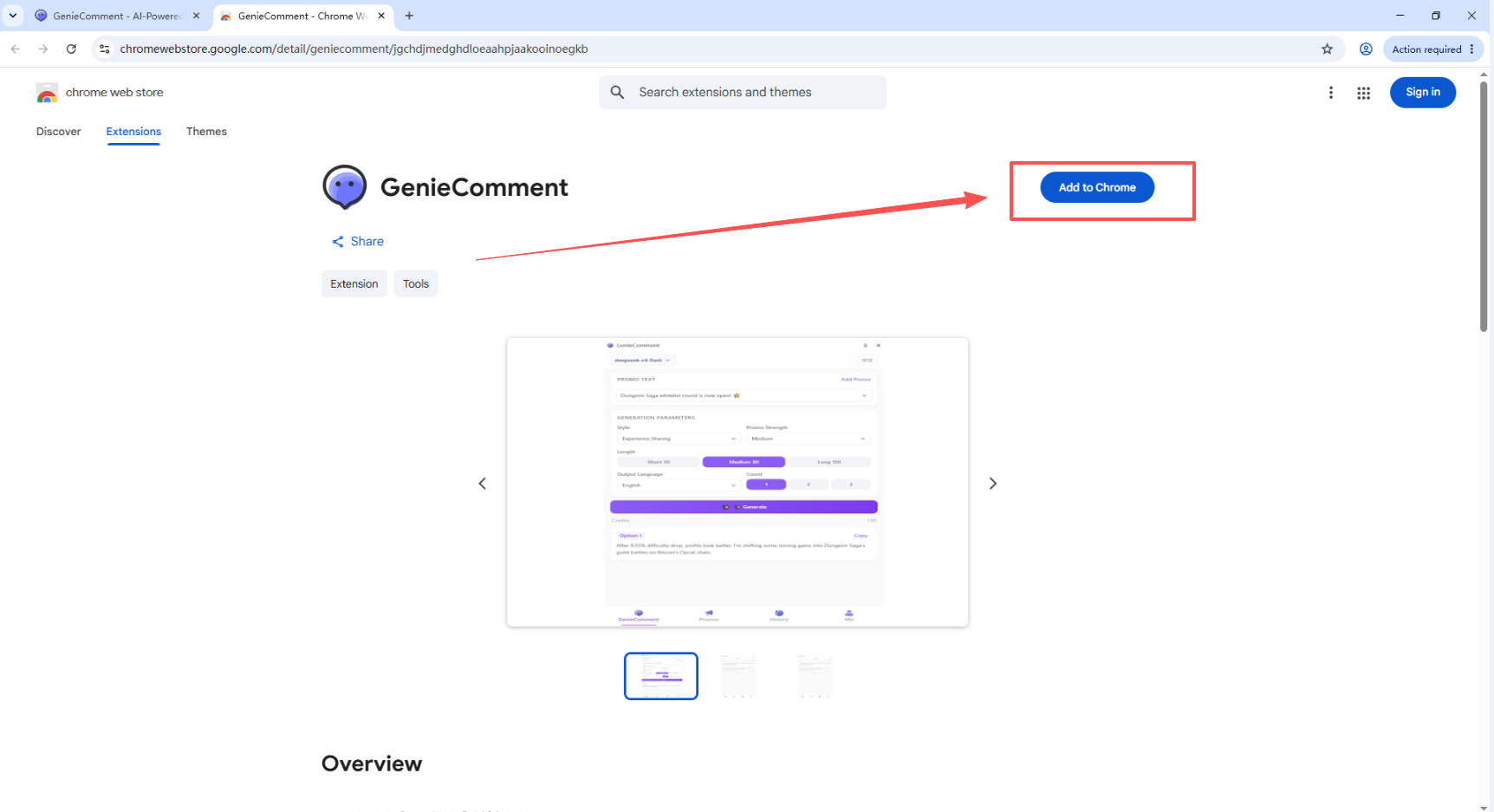
Screenshot: Extension installed in browser toolbar
3
Open the Extension
After installation, click the extension icon in the top-right corner of your browser, then find and open GenieComment.
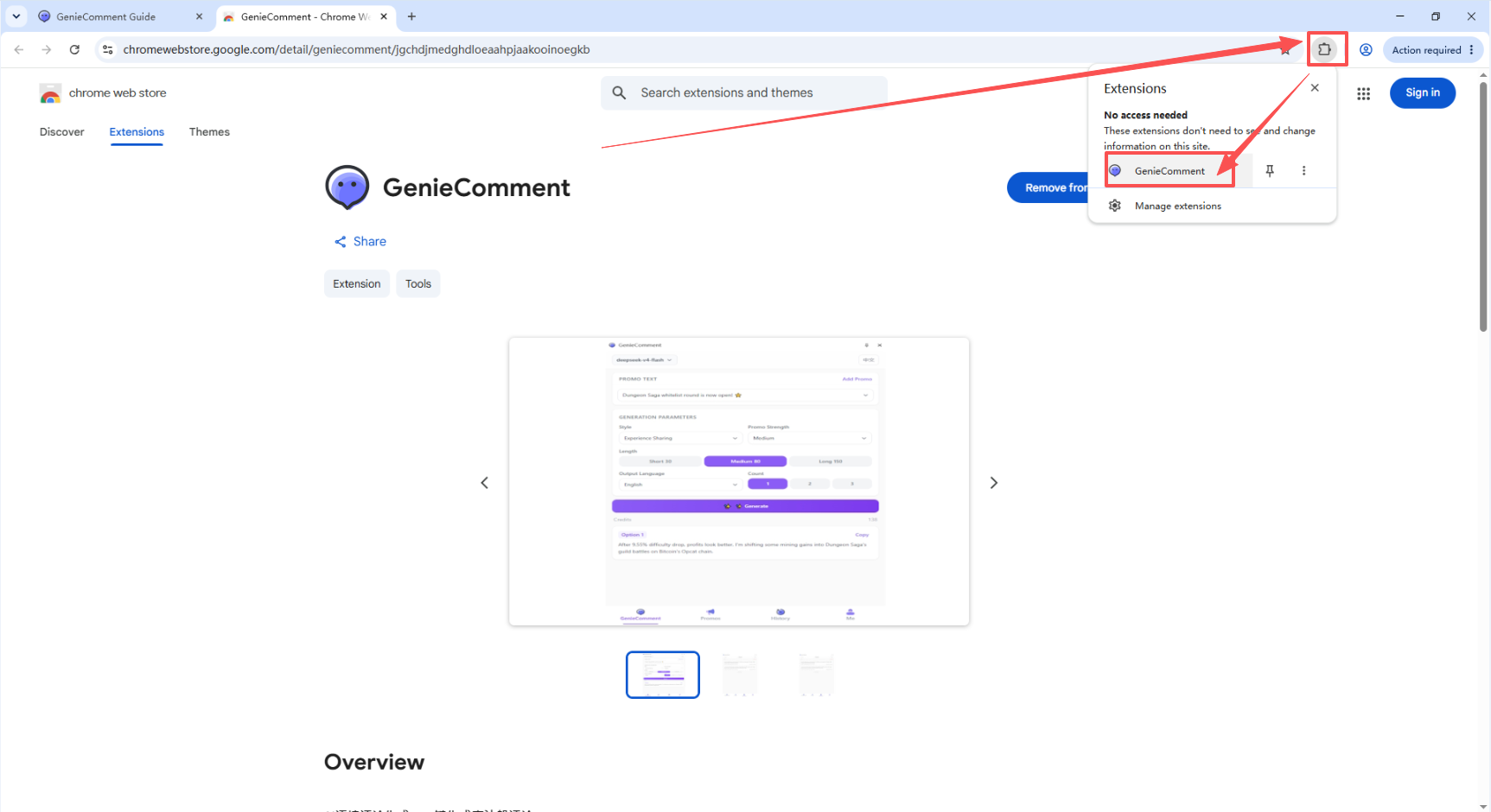
Screenshot: Click the extension icon to open panel
4
Register & Log In
Register an account with your email and log in to start using it.
The free plan gives you 20 generations — enough to experience the core features.
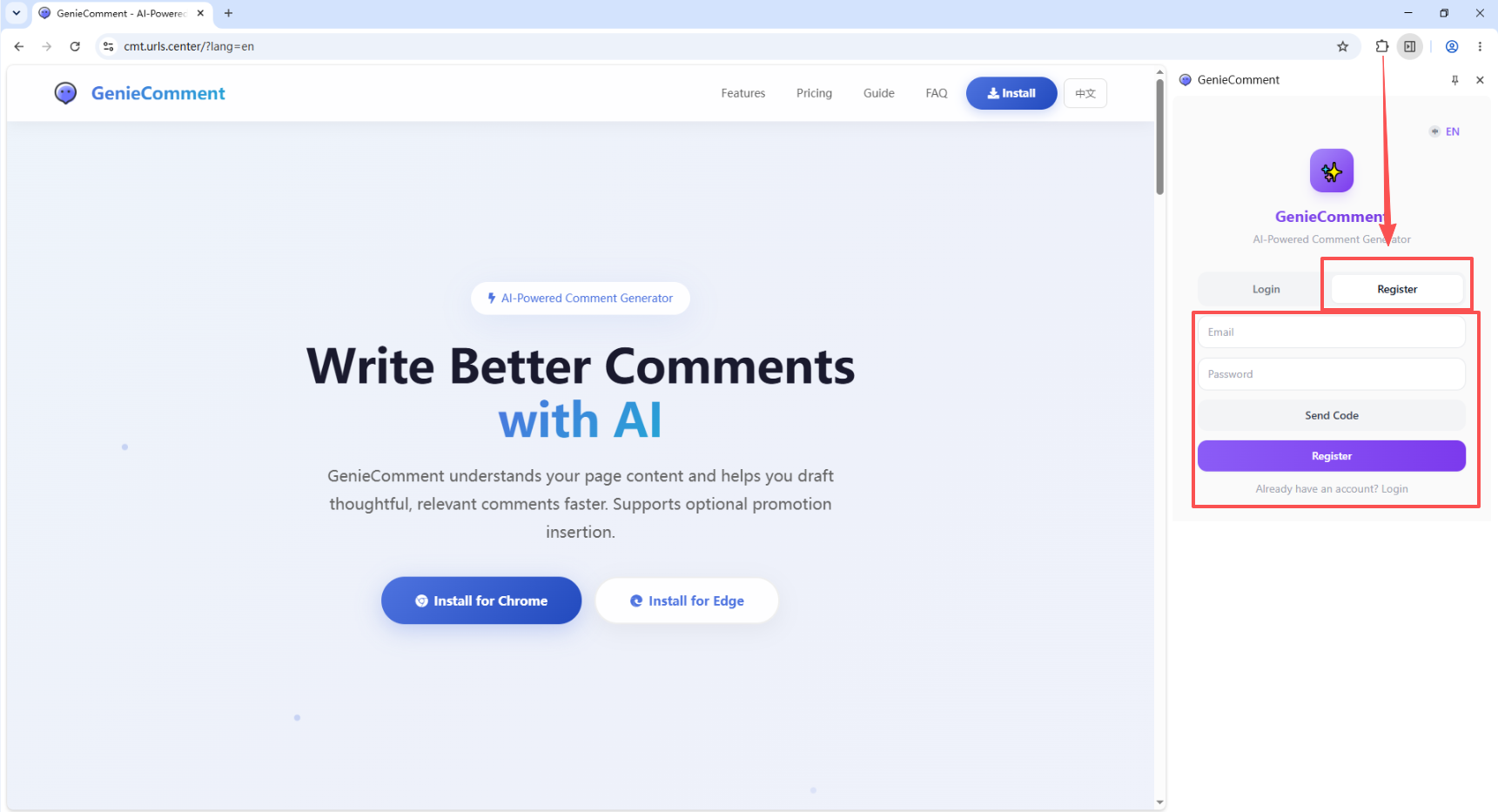
Screenshot: Login/Register panel
5
Add Your Promo Content
In the extension settings, add the content you want to promote:
Title: Dungeon Saga Whitelist Round Is Now Open
Product: Dungeon Saga
Promo Text: This is the first on-chain hardcore chain game on the BTC Opcat ecosystem designed for guilds. It blends fantasy RPG, guild alliances, arena PvP, PFP generation, and deep adventure gameplay. Whether you are a BTC ecosystem believer, a hardcore GameFi player, or an early adopter looking for the next 100x opportunity — Dungeon Saga is a chance you cannot miss.
Link: https://dungeonsaga.wtf/
Product: Dungeon Saga
Promo Text: This is the first on-chain hardcore chain game on the BTC Opcat ecosystem designed for guilds. It blends fantasy RPG, guild alliances, arena PvP, PFP generation, and deep adventure gameplay. Whether you are a BTC ecosystem believer, a hardcore GameFi player, or an early adopter looking for the next 100x opportunity — Dungeon Saga is a chance you cannot miss.
Link: https://dungeonsaga.wtf/
The plugin will naturally embed this promo text into every generated comment — no need to manually edit each time.
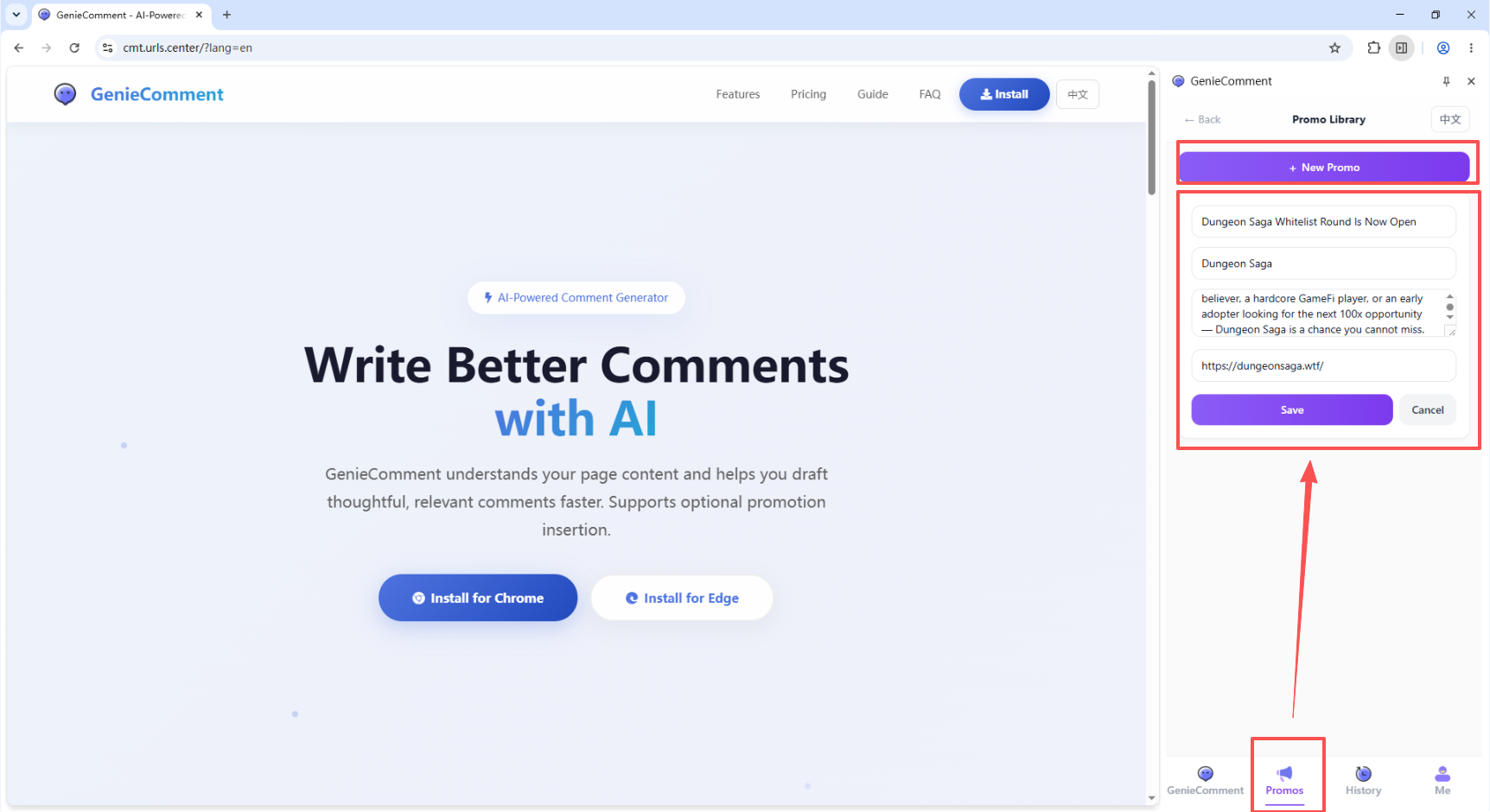
Screenshot: Adding promo content in settings
6
Open Your Target Post
Open the X (Twitter) or Weibo post you want to comment on.
The plugin will automatically read the page content and understand the topic and context of the post.
Select your promo content and configure the output parameters. Since different platforms have different comment length limits, choose "Short (30)" for X/Twitter. Pick a comment style that suits your taste.
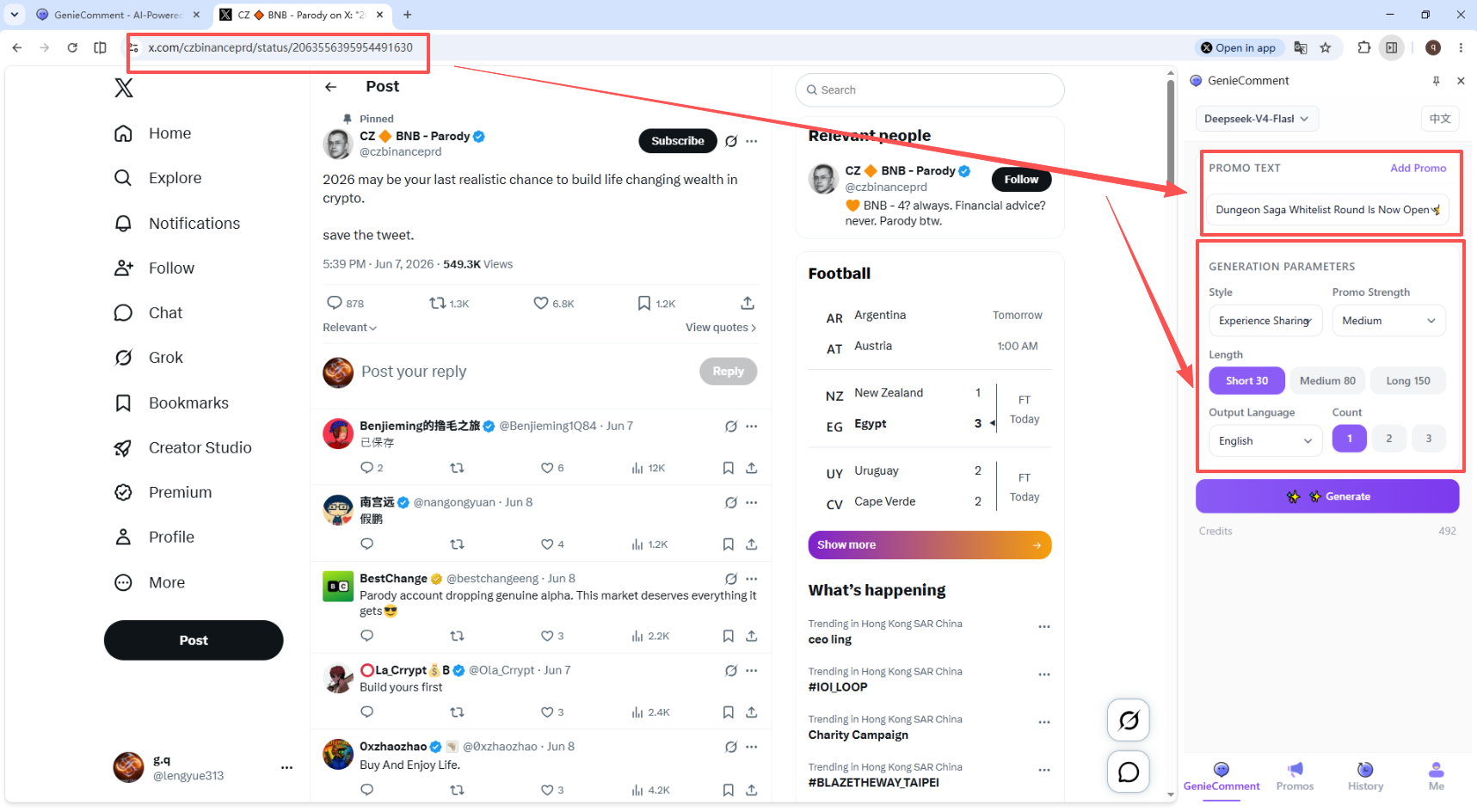
Screenshot: Target post page with extension active
7
Generate & Post
Click the GenieComment icon in your browser toolbar:
- Select your promo content (e.g. Dungeon Saga)
- Select a comment style — 6 styles available for different social scenarios
- Click "Generate Comment"
| Style | Description |
|---|---|
| Experience Sharing | Share personal insights from real experience |
| Knowledge Gap Filler | Fill information gaps and answer potential questions |
| Self-Deprecating Humor | Lighten the mood with witty self-mockery |
| Question & Engage | Spark discussion by asking questions |
| Pain Point Empathy | Hit pain points to resonate with the audience |
| Short & Punchy | Concise and powerful, say just enough |
The plugin combines the current post content with your promo text to generate a natural, in-depth comment with one click.
Copy the comment and paste it to post.
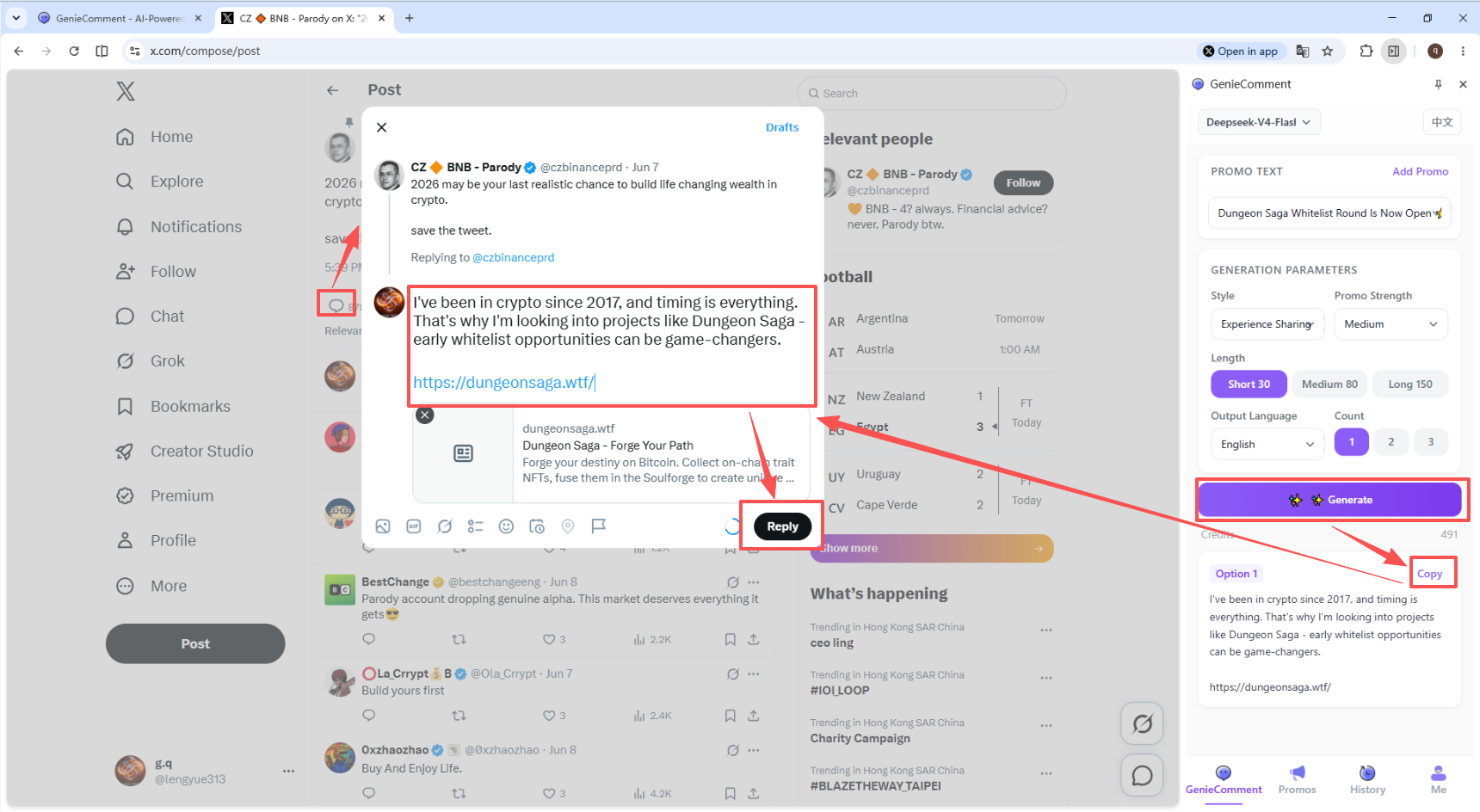
Screenshot: Generate comment panel